









Basic Settings
In the second stage, "Basic Settings," you can set up:
•
The Story's Prompt Template
•
AI Model Settings
•
Plot Examples via Advanced Settings
Shall we dive a bit deeper?
1. Required Prompt Template
What is a Prompt Template?
Simply put, it’s a feature that lets you "set how your character speaks."
•
We offer two types of response styles (Prompt Templates):
◦
Default Prompt – The AI understands a wide range of situations and responds accordingly.
◦
Custom Prompt – An advanced setting where the creator inputs all instructions directly to the AI.
Please choose one of the two templates above. Since the character's speaking style is optimized based on the template, selecting the one that fits your creative purpose will result in more natural responses.
2. Required Story Details
•
Please enter the traits your story will have.
•
This is the most critical information that influences the words and actions of the characters within your story.
•
The more specific and diverse the information—such as appearance, personality, and tone of voice—the more colorful and vivid your story will be.
•
Providing detailed instructions on how the character should behave will help the story progress much smoother.
•
If you use the Auto-generate feature after writing a portion, the AI can refer to your prompts to draft a starting point for you.
3. Advanced Settings
•
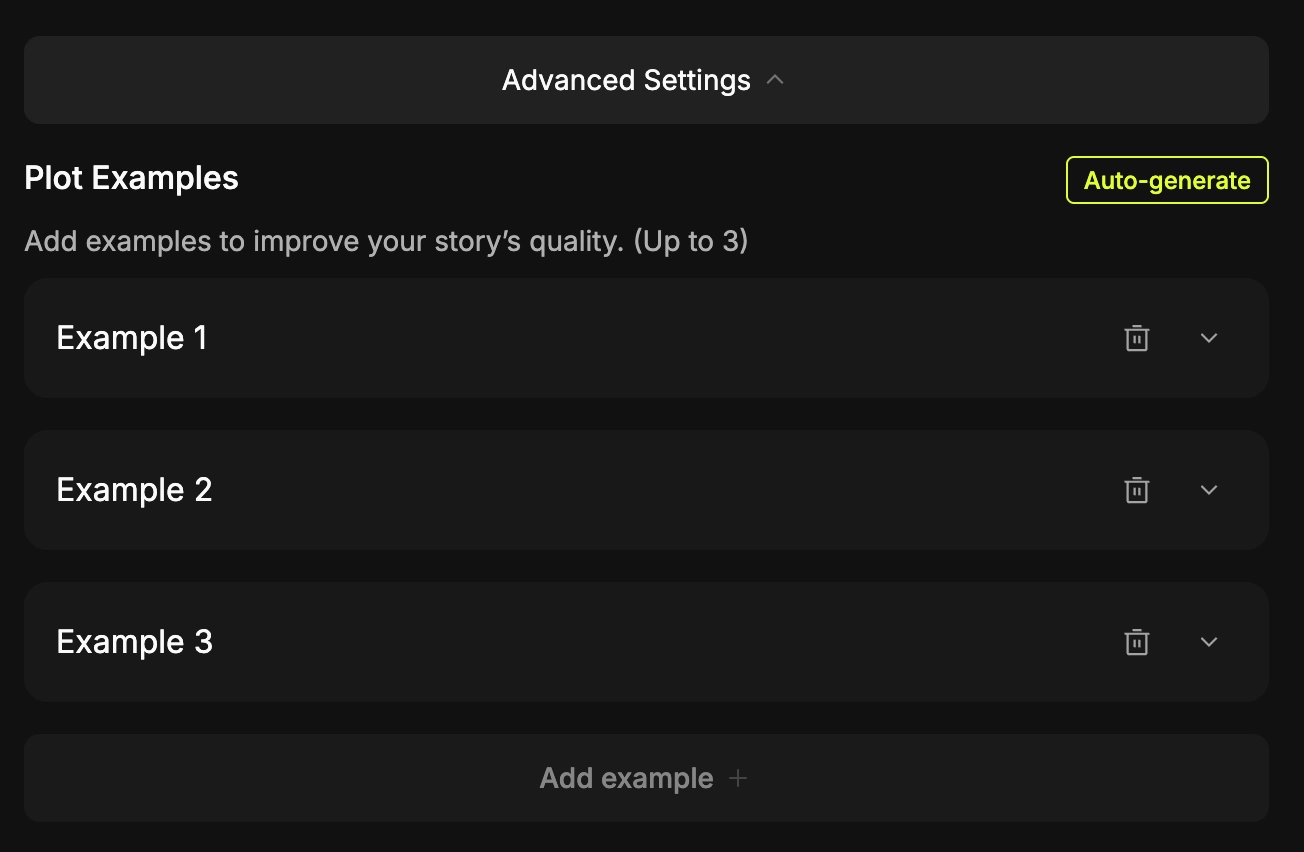
Finally, let’s look at Advanced Settings! Here, you can add and write Plot Examples.
•
When using Auto-generate, the AI refers to your Story Details to create responses. The more specific examples you provide, the more accurately you can tune the character’s tone to your liking. Furthermore, these plot examples act as a "guideline" for the users who interact with your work.
•
You can add more dialogue examples via the [Add example] button at the bottom. (Up to 3 examples)
Tips for Writing Story Prompts
•
Are you having trouble writing or understanding prompts?
If so, please refer to:  Understanding Prompts
Understanding Prompts