


How can we help? Search to find answers quickly.

FAQ
FAQ
Account & Login
Payments & Refunds
Credits
Creating
Playing
Settings
Other
Why are prices different on the app vs. the website?
›
Due to commission fees charged by the app stores, prices for in-app
purchases may differ from those on the website.
These fees are paid to the respective app stores. If you purchase through our website, you can enjoy the base price without any additional store fees.
These fees are paid to the respective app stores. If you purchase through our website, you can enjoy the base price without any additional store fees.
Do credits have an expiration date?
›
The expiration period and usage order for credits are as follows:
Paid Credits
Paid credits do not expire.
Free Credits
Free credits expire 30 days after being issued.
Expiration dates may vary for certain Certified Creator Credits or items awarded through events.
Certified Creator Credits
When you earn Certified Creator status, you'll receive bonus credits as a welcome reward. These credits expire 90 days after being issued.
The 2% Credits spent on your titles offered as a certified creator reward are valid for one year.
Usage Order
Credits closest to their expiration date are always used first. Paid credits with no expiration date are used last.
Paid Credits
Paid credits do not expire.
Free Credits
Free credits expire 30 days after being issued.
Expiration dates may vary for certain Certified Creator Credits or items awarded through events.
Certified Creator Credits
When you earn Certified Creator status, you'll receive bonus credits as a welcome reward. These credits expire 90 days after being issued.
The 2% Credits spent on your titles offered as a certified creator reward are valid for one year.
Usage Order
Credits closest to their expiration date are always used first. Paid credits with no expiration date are used last.
How do I request a refund?
›
All purchased items can be refunded within 7 days from the date of
payment,
only if none of the credits in the purchased package have been used.
If you meet these conditions, please contact us via the link at the bottom of this page.
only if none of the credits in the purchased package have been used.
If you meet these conditions, please contact us via the link at the bottom of this page.
A title was blocked — my own, or one I was playing. What can I
do?
›
Content is blocked when it violates our
Content Creation Policy. Blocks may be applied without prior notice.
If you created the title
1. Go to My Titles — the specific block reason is shown on the blocked title.
2. Edit your content so it complies with the policy.
3. Tap 'Resubmit' on the blocked title to request a re-review.
If a title you were playing was blocked
While a title is blocked, it cannot be opened and your sessions in it are not accessible. Only the title's creator can revise the content and request a re-review — support cannot unblock a title on a player's behalf. If the re-review is approved, the title becomes available again.
For the full guidelines, see the Content Creation Policy — these rules exist to keep OOC safe for all users.
If you created the title
1. Go to My Titles — the specific block reason is shown on the blocked title.
2. Edit your content so it complies with the policy.
3. Tap 'Resubmit' on the blocked title to request a re-review.
If a title you were playing was blocked
While a title is blocked, it cannot be opened and your sessions in it are not accessible. Only the title's creator can revise the content and request a re-review — support cannot unblock a title on a player's behalf. If the re-review is approved, the title becomes available again.
For the full guidelines, see the Content Creation Policy — these rules exist to keep OOC safe for all users.
The AI forgets details or takes the story in its own
direction
›
The AI keeps context through Memories and User Notes —
use these to steer it:
Long-term Memories
Add events or facts you want the AI to remember permanently. The Temporary, Relationships, and Goals tabs are AI-managed and cannot be edited directly — influence them through the conversation instead.
User Note
Write preferences, world-building details, and instructions for the character. You can set it per title in the session, or globally via Session Settings - User Notes.
Edit or delete previous messages
If the AI got a detail wrong or the story went off track, edit the earlier messages directly or delete unwanted ones — the conversation context updates to match.
If the story keeps heading one way
The AI prioritizes recent conversational flow, so this is model behavior, not a bug. Change the angle of your question, introduce a new topic, or explicitly redirect.
Long-term Memories
Add events or facts you want the AI to remember permanently. The Temporary, Relationships, and Goals tabs are AI-managed and cannot be edited directly — influence them through the conversation instead.
User Note
Write preferences, world-building details, and instructions for the character. You can set it per title in the session, or globally via Session Settings - User Notes.
Edit or delete previous messages
If the AI got a detail wrong or the story went off track, edit the earlier messages directly or delete unwanted ones — the conversation context updates to match.
If the story keeps heading one way
The AI prioritizes recent conversational flow, so this is model behavior, not a bug. Change the angle of your question, introduce a new topic, or explicitly redirect.
I got a message saying the response was blocked as
inappropriate
›
This block comes from the AI model's own built-in safety filter, not
from OOC's content moderation. Language models have their own
ethical guardrails and can decline to generate certain responses —
occasionally even in scenes that are allowed on OOC.
- It is most often triggered by sexual content involving minors, or by scenes where sexual content is combined with extreme violence.
- This is a per-response filter and is separate from title blocking — your title has not been blocked.
- Try rephrasing your last message, editing or deleting recent messages, or steering the scene in a different direction, then retry.
- It is most often triggered by sexual content involving minors, or by scenes where sexual content is combined with extreme violence.
- This is a per-response filter and is separate from title blocking — your title has not been blocked.
- Try rephrasing your last message, editing or deleting recent messages, or steering the scene in a different direction, then retry.
Where can I check the email associated with my OOC account?
›
You can check your OOC account email through the following
methods:
- App) Bottom-right 👤 MY > Top-right ⚙️ Settings > My Information
- Web) Top-left 👤 Profile > ⚙️ Settings > My Information
- App) Bottom-right 👤 MY > Top-right ⚙️ Settings > My Information
- Web) Top-left 👤 Profile > ⚙️ Settings > My Information
Why can't I access Adult titles?
›
Adult titles are only available to users 18 and older. If you are 18
or older but still can't access them, please check your age
information in your
profile settings.
How do I make a purchase?
›
Credits can be purchased through various payment methods.
Tap the 'Credit icon' at the top of the home screen > 'Refill Credits Now! tab' > Select the package you want and press the Refill Now button.
Follow the steps above to complete your purchase.
Tap the 'Credit icon' at the top of the home screen > 'Refill Credits Now! tab' > Select the package you want and press the Refill Now button.
Follow the steps above to complete your purchase.
How do I request a refund?
›
Credit refunds and payment cancellations are available within 7 days
of purchase,
only if none of the credits in the purchased package have been used.
If you meet these conditions, please contact our Customer Support team.
only if none of the credits in the purchased package have been used.
If you meet these conditions, please contact our Customer Support team.
Why are prices different on the app vs. the website?
›
Due to commission fees charged by the app stores, prices for in-app
purchases may differ from those on the website.
These fees are paid to the respective app stores. If you purchase through our website, you can enjoy the base price without any additional store fees.
These fees are paid to the respective app stores. If you purchase through our website, you can enjoy the base price without any additional store fees.
What are credits?
›
Credits are the currency used within the OOC service.
You can obtain them by purchasing directly, or by earning them through Daily Check-in and completing Challenges.
Credits are consumed based on the Mode you select, and the amount required may vary by mode.
You can obtain them by purchasing directly, or by earning them through Daily Check-in and completing Challenges.
Credits are consumed based on the Mode you select, and the amount required may vary by mode.
In what order are credits consumed?
›
Credits closest to their expiration date are consumed first.
Do credits have an expiration date?
›
The expiration period and usage order for credits are as follows:
Paid Credits
Paid credits do not expire.
Free Credits
Free credits expire 30 days after being issued.
Expiration dates may vary for certain Certified Creator Credits or items awarded through events.
Certified Creator Credits
When you earn Certified Creator status, you'll receive bonus credits as a welcome reward. These credits expire 90 days after being issued.
Usage Order
Credits closest to their expiration date are always used first. Paid credits with no expiration date are used last.
Paid Credits
Paid credits do not expire.
Free Credits
Free credits expire 30 days after being issued.
Expiration dates may vary for certain Certified Creator Credits or items awarded through events.
Certified Creator Credits
When you earn Certified Creator status, you'll receive bonus credits as a welcome reward. These credits expire 90 days after being issued.
Usage Order
Credits closest to their expiration date are always used first. Paid credits with no expiration date are used last.
Where can I check my credit history?
›
You can check your credit history by clicking Credits on the left
side, then navigating to Credit History, where you can view your
Purchase History and Usage History separately.
Please note that in the Usage History tab, you can view details for Usage, Acquisition, and Sponsorship credits.
Please note that in the Usage History tab, you can view details for Usage, Acquisition, and Sponsorship credits.
I want to create my own stories and characters!
›
Want to go beyond chatting and create your own characters?
Even first-time creators can easily get started step by step with the guides below.
- Create a Story
- Create a Character
Need more tips? Come visit the official OOC Discord!
👉 [Join our Official Discord Community]
Even first-time creators can easily get started step by step with the guides below.
- Create a Story
- Create a Character
Need more tips? Come visit the official OOC Discord!
👉 [Join our Official Discord Community]
Where can I find the titles I've created?
›
You can find your created stories/characters through the following
methods:
- App) My Titles icon at the bottom
- Web) Left sidebar > My Titles, or bottom-left Profile > My Account > Titles
- App) My Titles icon at the bottom
- Web) Left sidebar > My Titles, or bottom-left Profile > My Account > Titles
How do I add an image to the opening greeting message?
›
1. Register the image in the 'Media' step.
2. Copy the registered image.
3. Paste it into the desired location (opening greeting, character settings, etc.).
4. Alternatively, you can display an image using the
Example:
For more details, please refer to the Creator tab in the Guide section below!
2. Copy the registered image.
3. Paste it into the desired location (opening greeting, character settings, etc.).
4. Alternatively, you can display an image using the
{{img::imageName}} syntax.Example:
{{img::Have_a_pleasant_dinner}}For more details, please refer to the Creator tab in the Guide section below!
How do I create a status display in stories and characters?
›

```Info
hello, OOC!
```
For more details, please refer to the Creator tab in the Guide section below!
I'd like to have my work reviewed
›
You can first review our
Content Creation Policy.
If you need a specific review, please contact us at support@ooc.ai.
If you need a specific review, please contact us at support@ooc.ai.
The character's response was cut off mid-sentence
›
Since character responses are generated in real time, they may be
interrupted in some cases depending on your network conditions or
usage environment. Additionally, if a response becomes too long,
generation may be limited or stop mid-way to ensure service
stability.
This is a normal behavior based on how the service operates to deliver responses reliably.
If this happens, please check your network connection and try continuing the conversation or splitting your message into shorter parts without leaving the sessions.
This is a normal behavior based on how the service operates to deliver responses reliably.
If this happens, please check your network connection and try continuing the conversation or splitting your message into shorter parts without leaving the sessions.
I'm seeing a "A temporary error occurred" message
›
The "A temporary error occurred" message can appear
intermittently.
We are actively working on improvements to address this issue. If you see this message,
please wait a moment and then try re-entering the session or regenerating the response.
We are actively working on improvements to address this issue. If you see this message,
please wait a moment and then try re-entering the session or regenerating the response.
I'm seeing a "Credits are already in use" message
›
This notification appears when a response is still being generated
in another session.
I accidentally deleted a title or conversation. Can it be
recovered?
›
Unfortunately, titles and conversation history that you have deleted
cannot be recovered.
I keep getting repetitive responses
›
Repetitive responses are often caused by specific prompt structures
set by the creator (such as top HUB/HUD, code block status displays,
etc.).
When the AI sees a fixed format like a date or status display repeated at the top of every response, it learns to treat this pattern as a rule that must be maintained, increasing the likelihood of generating content similar to previous responses.
To resolve this, try adding the following instruction to User Notes:
"# Always output code block status displays or HUB/HUD structures only at the very bottom of the response."
Simply moving the output position to the bottom can help break the repetition pattern and keep the conversation flowing naturally.
When the AI sees a fixed format like a date or status display repeated at the top of every response, it learns to treat this pattern as a rule that must be maintained, increasing the likelihood of generating content similar to previous responses.
To resolve this, try adding the following instruction to User Notes:
"# Always output code block status displays or HUB/HUD structures only at the very bottom of the response."
Simply moving the output position to the bottom can help break the repetition pattern and keep the conversation flowing naturally.
The dialogue keeps going in the same direction
›
The AI is designed to maintain the flow of the most recent
conversation as it continues the story.
Because of this, if a particular topic or expression is repeatedly emphasized,
the conversation may continue along a similar path without significant changes.
This is not a system error, but rather a current limitation of the AI model
which prioritizes conversational continuity. If you'd like responses in a different direction,
try changing the angle of your question or conversation, or clearly introduce a new topic.
Because of this, if a particular topic or expression is repeatedly emphasized,
the conversation may continue along a similar path without significant changes.
This is not a system error, but rather a current limitation of the AI model
which prioritizes conversational continuity. If you'd like responses in a different direction,
try changing the angle of your question or conversation, or clearly introduce a new topic.
I want to stop receiving mobile notifications (push /
email)
›
You can manage your mobile notification settings through the
following method:
- App) Bottom-right > 👤 MY > ⚙️ Settings > Notification Settings
- App) Bottom-right > 👤 MY > ⚙️ Settings > Notification Settings
What are Modes?
Session Settings
›
Tap the 'Mode' button in the top-right corner of a session to switch
between different conversation modes.
Each mode offers different performance levels, and the number of credits consumed varies accordingly. Here's an example:
Each mode offers different performance levels, and the number of credits consumed varies accordingly. Here's an example:
| Mode | Credits Used |
|---|---|
| Superb | 90 credits |
| Skillful | 60 credits |
| Extensive | 60 credits |
| Basic | 30 credits |
What is the Avatars feature?
Session Settings
›
Avatars is your profile as recognized by the story.
You can set what the characters call you,
and configure information that will be reflected in the story (age, gender, appearance).
You can set what the characters call you,
and configure information that will be reflected in the story (age, gender, appearance).
What is User Note?
Session Settings
›
User Note is
a space where you can write down important information or
settings that characters should remember during your chat
session.
You can add various information and settings to use in your chats.
For example, you could record things like:
1. Personal preferences or settings the character should know
Example: I prefer tea over coffee.
2. World-building information
Example: This is a medieval fantasy world, not a modern setting.
User Notes can be applied not only to individual titles, but also globally!
Instead of setting notes for each title, you can go to Session Settings - User Notes
to set common settings that apply every time you play a new story.
You can add various information and settings to use in your chats.
For example, you could record things like:
1. Personal preferences or settings the character should know
Example: I prefer tea over coffee.
2. World-building information
Example: This is a medieval fantasy world, not a modern setting.
User Notes can be applied not only to individual titles, but also globally!
Instead of setting notes for each title, you can go to Session Settings - User Notes
to set common settings that apply every time you play a new story.
What is Output Length?
Session Settings
›
Output Length is
a feature that lets you adjust the maximum length of character
responses.
Additional credits are charged for every 100 tokens beyond the base output limit.
If the response does not exceed the base output (800 tokens), no additional credits are charged.
* Maximum output adjustment controls the upper limit of response length, not the actual response length itself.
* The output length set during character creation is separate from this setting.
You can set a global output length via Session Settings - Output Length.
Additional credits are charged for every 100 tokens beyond the base output limit.
If the response does not exceed the base output (800 tokens), no additional credits are charged.
* Maximum output adjustment controls the upper limit of response length, not the actual response length itself.
* The output length set during character creation is separate from this setting.
You can set a global output length via Session Settings - Output Length.
What is Premium Mode?
Session Settings
›
Premium Mode allows you to enjoy conversations with characters with
greater immersion and richer expression.
You can select the mode you want when chatting with a character.
Premium Mode costs 20 credits per use. Please keep this in mind.
You can select the mode you want when chatting with a character.
Premium Mode costs 20 credits per use. Please keep this in mind.
What is Memories?
Session Settings
›
Memories is
a feature that allows the AI to retain the overall flow of your
story.
It ensures that the story you're building stays consistent and is remembered more vividly.
Temporary memories are generated based on recent conversations, and previous Temporary entries automatically move to Long-term storage,
accumulating over time. Relationships and Goals are updated based on the latest conversation.
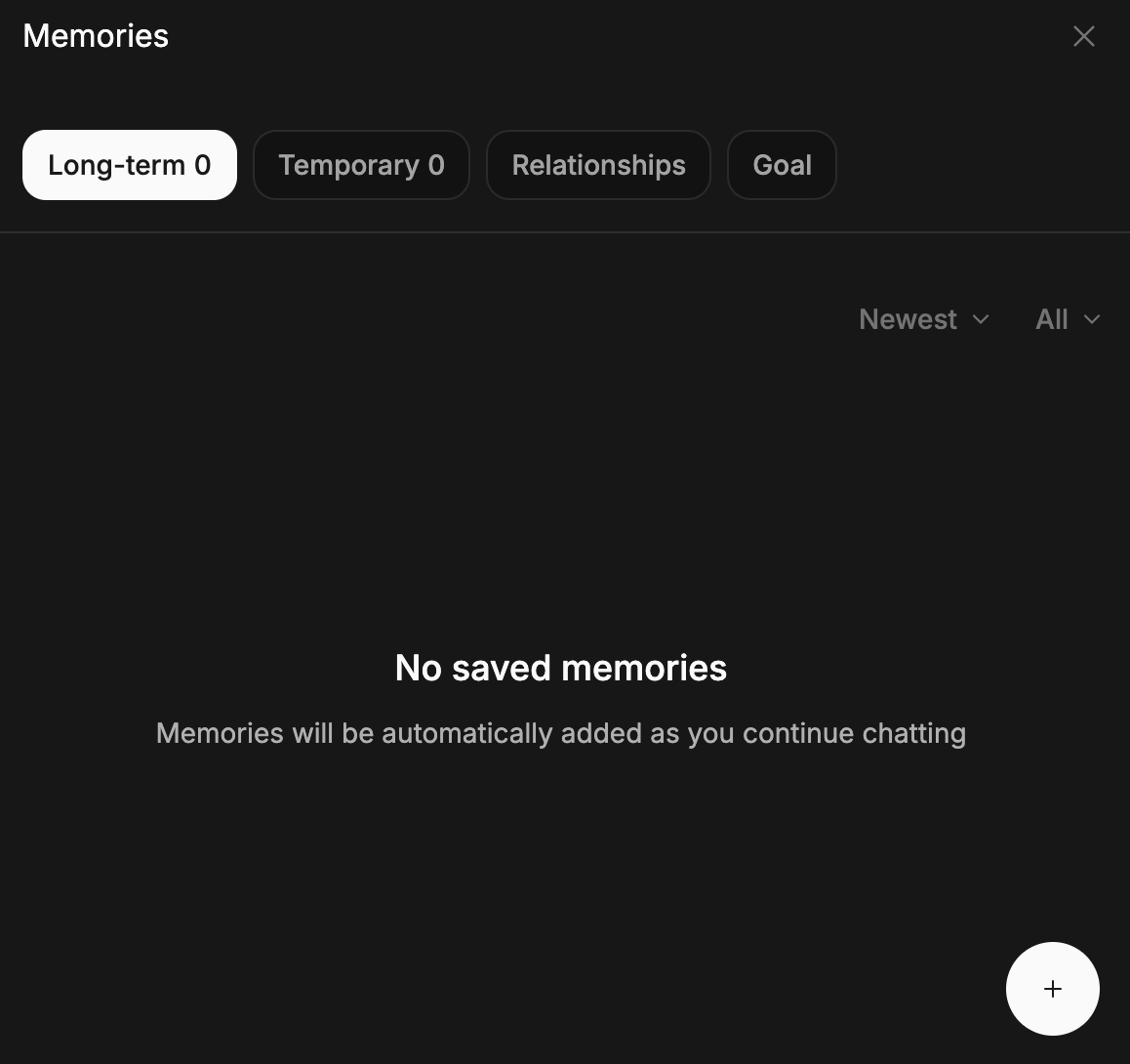
1. Long-term: Permanently preserved records of past events
2. Temporary: Flow and context from the most recent conversation (in timeline format)
3. Relationships: Current relationships and attitudes between characters and the user
4. Goal: Objectives set for the current situation
You can freely add and edit up to 100 entries in the [Long-term] tab.
However, other tabs are managed by the AI to prevent context conflicts,
so they cannot be edited directly. Please keep this in mind.
It ensures that the story you're building stays consistent and is remembered more vividly.
Temporary memories are generated based on recent conversations, and previous Temporary entries automatically move to Long-term storage,
accumulating over time. Relationships and Goals are updated based on the latest conversation.
1. Long-term: Permanently preserved records of past events
2. Temporary: Flow and context from the most recent conversation (in timeline format)
3. Relationships: Current relationships and attitudes between characters and the user
4. Goal: Objectives set for the current situation
You can freely add and edit up to 100 entries in the [Long-term] tab.
However, other tabs are managed by the AI to prevent context conflicts,
so they cannot be edited directly. Please keep this in mind.
What is Personalization?
Personalization
›
In [MY → Personalization], you can customize your
home screen to match your preferences.
You can choose to see only titles that match your preferred genres, rearrange tab order, and toggle Adult content for each genre.
This feature is available after completing age verification.
- ON: View both General and Adult titles together in each genre tab (except 'Main' and 'Rankings')
- OFF: View Adult titles only in the dedicated 'Adult' tab
Tab order settings: Move your favorite tabs to the front and less-used ones to the back to create your own custom home screen.
Try Personalization to set up a home screen that's uniquely yours!
You can choose to see only titles that match your preferred genres, rearrange tab order, and toggle Adult content for each genre.
This feature is available after completing age verification.
- ON: View both General and Adult titles together in each genre tab (except 'Main' and 'Rankings')
- OFF: View Adult titles only in the dedicated 'Adult' tab
Tab order settings: Move your favorite tabs to the front and less-used ones to the back to create your own custom home screen.
Try Personalization to set up a home screen that's uniquely yours!
Can other people see my conversations?
›
Your conversations with stories and characters are securely
protected through encryption.
I want to report inappropriate content
›
Please report it through [Story/Character Info > Menu >
Report].
Guide
User
Creator
Learn how to use OOC and explore its features.
OOC Guide
Story
›
What is a OOC Story?
›
Suggested Replies
›
Character
›
What is a OOC Character?
›
Suggested Replies
›
My Titles
›
Manage My Titles
›
Images
›
Real-time Scene Images
›
Badge
›
Badge
›
OOC Tutorial
Content Creation
Content Policy Guide
›
Title Image
›
Upper Body Images (Chest)
›
Bloodstain Images
›
Swimsuit Images
›
Need more help? Contact our team (support@ooc.ai)